 COME
COMECOME Sports Questions: Find the Sports Category
For a question about COME Sports, locate Sports and distinguish category navigation from account tools.
For example, a reader following a cricket score needs runs, wickets, overs and match status. A reader choosing a fantasy activity needs its own selection and scoring rules. Reaching the Sports tab is a useful first step, but those two tasks then diverge.
Start from the main category row
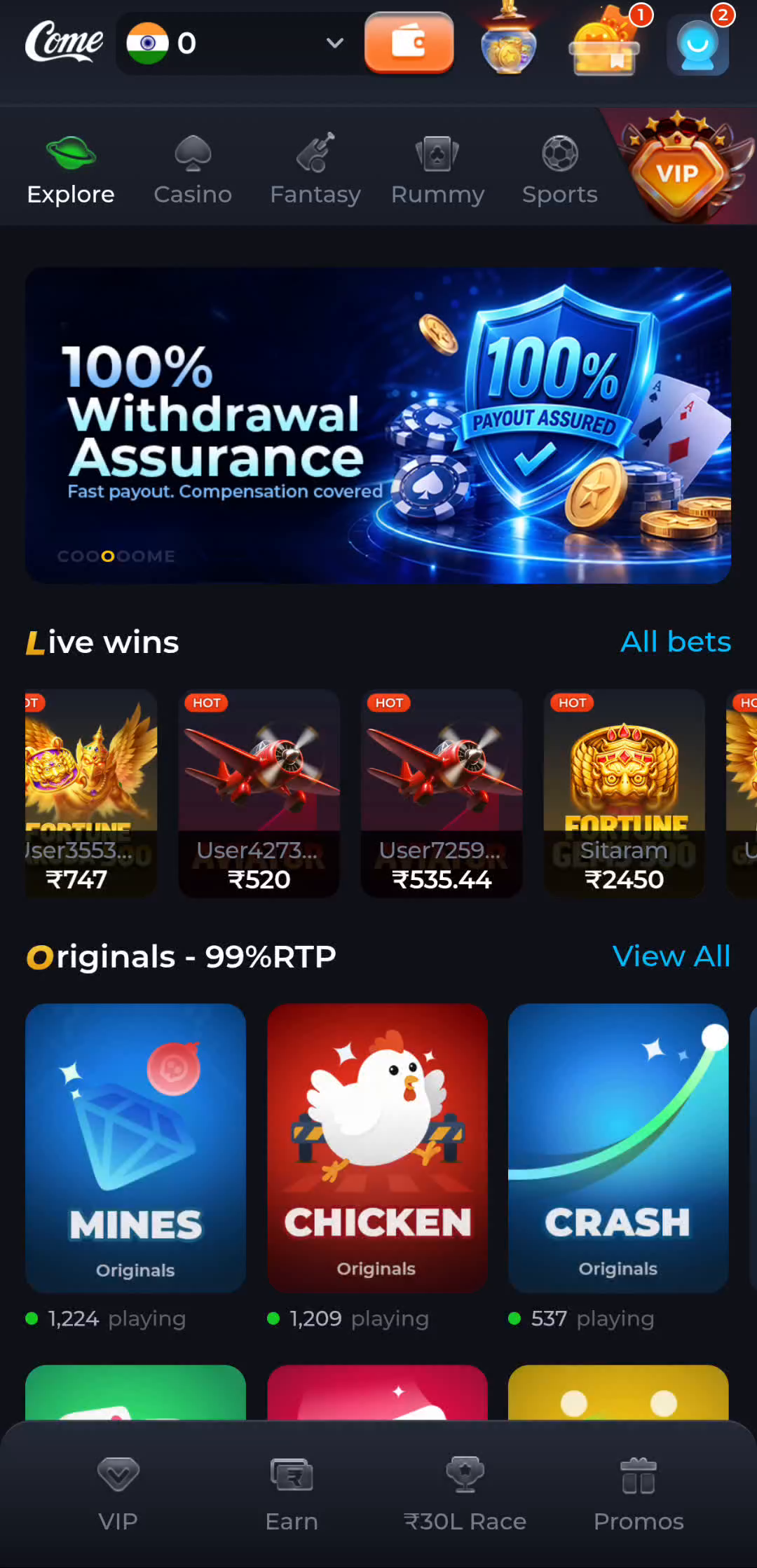
The COME home interface places Sports alongside Explore, Casino, Fantasy and Rummy. These labels organise product areas. To find Sports, begin at that row and select the relevant label rather than choosing an unrelated game card. Read the next screen's heading before continuing. A successful navigation means the intended area is open; it does not mean you joined an activity or installed another app.
If a profile menu is covering the catalogue, use its visible close or return control first. Account, Transactions and Game History serve personal-record tasks. Settings controls preferences. None of these labels is a substitute for the Sports category. Keeping the layers separate makes it easier to return from a help page without restarting your visit.
Read the destination before the next action
Inside a sports-related area, establish whether you are looking at an event description, an activity, a score or another service. Retain the event name and date where shown. A familiar team image can appear in several contexts, so the title and current instructions matter more than the artwork. Read any eligibility and participation conditions before making a commitment.
Use a simple orientation task: open the area, identify its purpose and find the way back. That is enough to learn the route. You do not need to enter an activity to prove you found the section. A banner slogan also does not tell you the current status of an event or whether your account can access it.
If Sports does not open as expected
Record whether the category is absent, the control does not respond, a page returns an error or a screen remains loading. These are different observations. Compare whether the main product screen still loads. If only one area is affected, describe that limited scope rather than assuming the entire Android installation is broken.
Check ordinary connectivity and compare one trusted connection if needed. Keep the account and task stable while testing. Do not repeat a transaction or registration request as a connection test. When the problem remains, use Contact CS or the appropriate current help route and include the screen name and exact message privately.
Returning on another visit
A public product entry and a saved account-specific page are different starting points. A bookmark may reopen a browser session while an installed icon opens an app. Check which surface is active before using its Back control or comparing its records. If you are already at the right product screen, another APK download is unnecessary for navigation.
Apply this to a question about COME Sports
Sports is a category in the COME interface. Read the particular activity before assuming it offers a live score, video stream or fantasy contest. The category name alone does not describe its rules, coverage or account requirements.
In this situation, complete the relevant check before repeating another stage. Locate Sports and distinguish category navigation from account tools. Keep the result with the exact screen or file so a later step can use it instead of starting the whole process again.
A practical completion check
- Return to the main product category row.
- Open Sports and read the destination title.
- Identify the next task before selecting an activity.
Keep the result tied to the exact screen and task. A useful stopping point is an understood next step; repeated actions are not a substitute for knowing what the earlier action did.
Questions about this task
Does Sports mean there is a separate APK?
A category label identifies an area inside the product. Use the actual distribution information to identify an installation package.
What confirms that I found the section?
The relevant screen opens and its title and purpose match your task. Account access and event availability are separate checks.
A related next step
For a question about COME Sports, match the screen and its unit to the question you want to answer.